



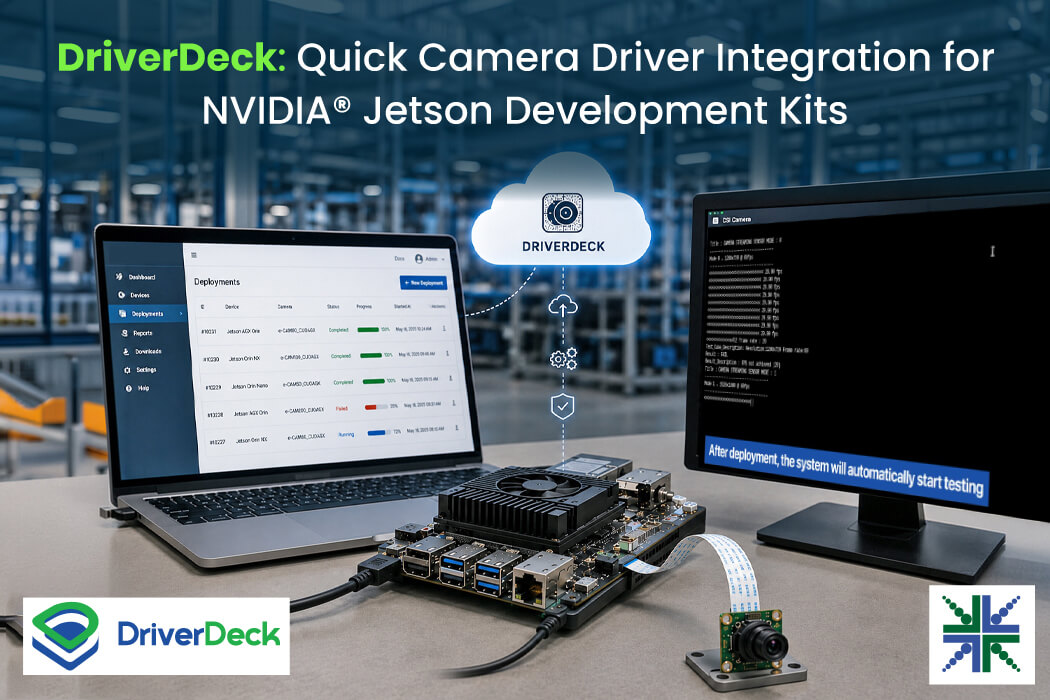
Generating, deploying, and validating camera drivers are the most challenging aspects of embedded vision system development. It involves a sequence of manual and error-prone tasks, including binary validation, file transfer, and proper file placement. Any mistake during these steps can delay camera bring-up and increase development time.
To simplify this workflow, e-con Systems developed DriverDeck, a cloud-based camera driver deployment and testing platform that automates driver deployment and testing for NVIDIA Jetson development kits.
This blog explores:
- What is DriverDeck?
- What are the challenges of manual camera driver deployment workflows?
- How does DriverDeck automate camera driver deployment and testing?
- What are the key benefits of DriverDeck?
Why the Need for DriverDeck?
Building a camera driver is a complex manual process that requires many configuration inputs, significant storage space for the NVIDIA JetPack source code, programming skills, and a solid understanding of camera and the NVIDIA Jetson development kit.
Depending on the platform and configuration, the build process alone can take 40 minutes to an hour. e-con Systems’ DriverDeck addresses these challenges by automating camera driver deployment and testing, reducing manual effort and helping embedded vision developers accelerate product development.
Introducing DriverDeck
DriverDeck is a cloud-based camera driver deployment and testing platform developed by e-con Systems. It simplifies camera driver deployment and testing through a centralized web interface, reducing the complexity associated with manual command-line workflows. Currently, the DriverDeck supports automated deployment and testing of camera drivers on NVIDIA Jetson development kits.
While the traditional camera driver deployment process involves multiple manual steps, DriverDeck simplifies the entire workflow and enables developers to complete the deployment process with significantly less effort. The following comparison highlights how DriverDeck streamlines the camera driver’s deployment workflow compared to the manual approach.
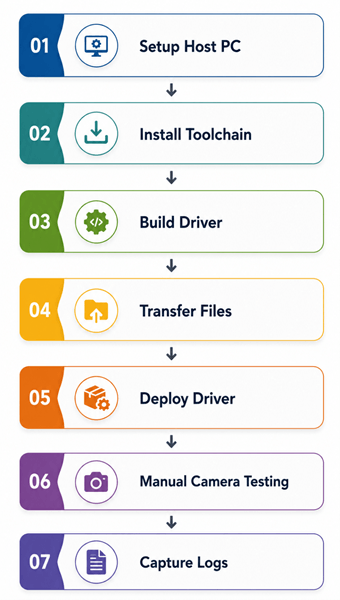 Figure 1: Manual Deployment
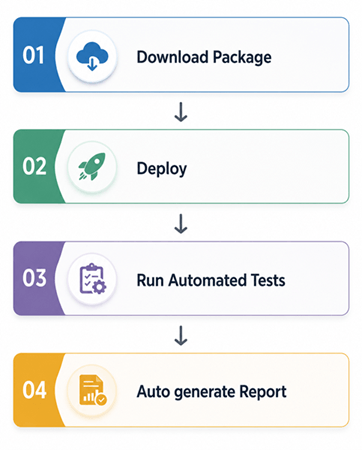 Figure 2: DriverDeck
Key Benefits of e-con Systems’ DriverDeck
Reduced hardware requirements
DriverDeck eliminates the need for a dedicated Linux host system for driver deployment. By using a cloud-based deployment platform, it reduces hardware requirements and lowers infrastructure costs.
Reduced manual intervention
DriverDeck automates the deployment workflow, eliminating manual deployment tasks and minimizing manual intervention.
Faster camera driver deployment
DriverDeck reduces the deployment workflow from 40–60 minutes to approximately 20 minutes.
Lower Learning Curve
The workflow can be executed through a guided web interface without extensive Linux system deployment knowledge.
Feature Comparison Table: Manual Deployment vs. DriverDeck
| Sl. No. | Activity | Manual Depolyment | DriverDeck |
| 1 | Build system setup (Linux Ubuntu PC/laptop and toolchain installation) | Yes | No |
| 2 | Host system (Linux Ubuntu PC/laptop) required for transferring files to the NVIDIA development kit | Yes | No |
| 3 | Knowledge of Linux commands for driver package extraction, deployment, testing, and log collection | Yes | No |
| 4 | Manual transfer of images, videos, and logs from the NVIDIA development kit to the host PC | Yes | No |
| 5 | Manual execution of camera testing and report generation | Yes | No |
| 6 | Automatic deployment of camera-specific binary files to the development kit | No | Yes |
| 7 | Web-based editing and rebuilding of camera-specific configuration files | No | Yes (Future release) |
| 8 | Automated deployment of binaries to the required locations on the target device | No | Yes |
| 9 | Automated camera sanity tests, including image capture, video recording, and feature validation | No | Yes |
| 10 | Automatic generation and download of camera test reports | No | Yes |
| 11 | Sample images and videos captured from camera nodes are downloadable from the DriverDeck | No | Yes |
| 12 | Automated collection and download of camera logs from the target device | No | Yes |
| 13 | Simplified camera integration on NVIDIA Jetson platforms, allowing developers to focus on application development | No | Yes |
How e-con Systems’ DriverDeck Works
Step 1: Connect to the Network
For successful deployment and test, the target Jetson device must be flashed with the required Jetpack image, connected to the network and accessible from DriverDeck.
Step 2: Install the Deployment and testing Application
Download and install the DriverDeck Deployment and testing Application on the target NVIDIA Jetson development kit by selecting the Download Button, as shown in the following figure.
 Download Button for Downloading the Deployment Application
Step 3: Register the System and Select the NVIDIA Platform
Register the system details and select the target NVIDIA Jetson development kit, as shown in the figure below.
 System Details Screen
The DriverDeck currently supports the following NVIDIA Jetson development kits:
- Jetson AGX Orin™
- Jetson Orin™ NX
- Jetson Orin Nano™
The support for Jetson Thor™ is planned for future releases.
Detailed setup instructions are available in the DriverDeck User Manual.
Step 4: Build Configuration
Enter the necessary build parameters before generating or deploying the appropriate camera driver package, as shown below.
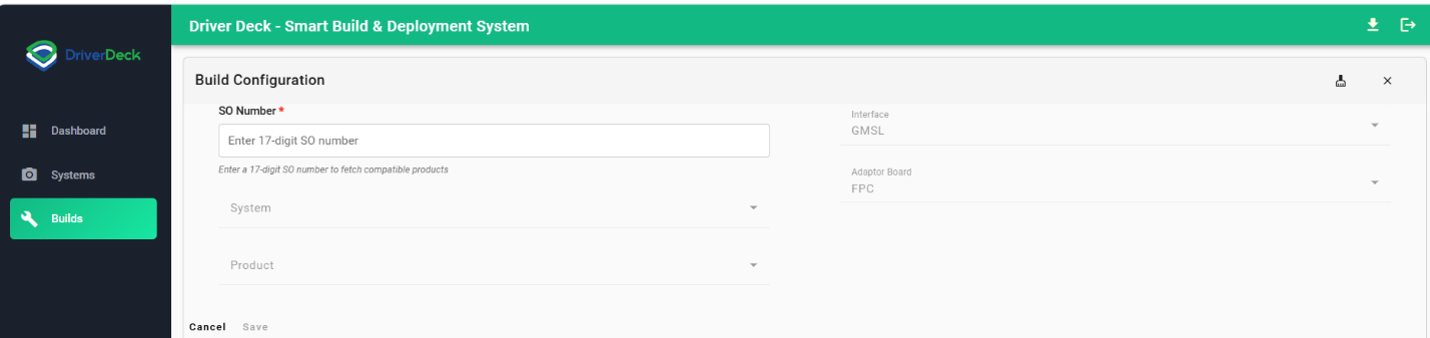 This automatically retrieves compatible hardware configurations while reducing manual selection
Step 5: Download the Driver Package
Once the details are selected, DriverDeck allows users to download the driver package based on the selected camera product and JetPack version. Unlike the manual process, users do not need to manually download JetPack sources or configure the build environment.
The Download Button is shown in the figure below.
 Download Button
The generated driver package can also be downloaded locally, providing flexibility for development scenarios that require offline distribution.
Step 6: Deploy the Driver
When the deploy button is clicked, the deployment and testing application manages driver deployment, status reporting, and communication between the devices and the cloud platform.
The Deploy Button is shown in the figure below.
 Deploy Button
Once deployment is initiated:
- Driver files are transferred automatically
- Required installation steps are executed
- Deployment status is reported back to the DriverDeck from the Jetson device through the deployment and testing application
Step 7: Monitor Deployment Progress
The DriverDeck provides a dashboard that shows the registered devices, recent activity, and logs. This allows users to track the entire process from the DriverDeck.
The dashboard screen is shown in the following figure.
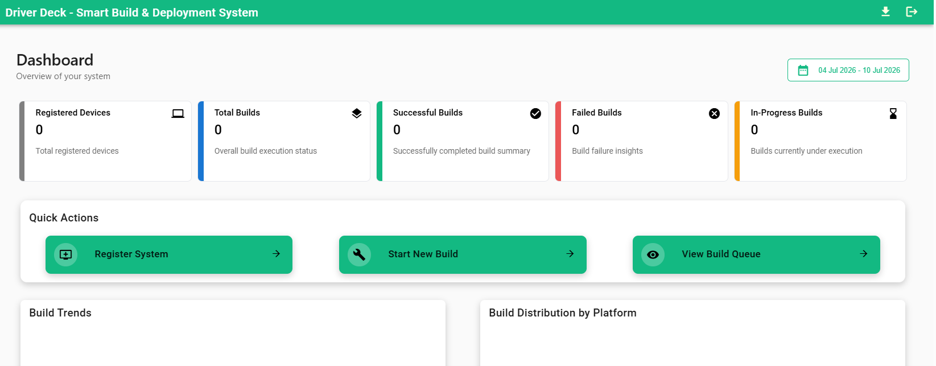 Dashboard Screen
Step 8: Automated Camera Testing
After deployment, the system automatically executes camera validation tests, collects the results, and generates test reports.
Successful completion confirms that the driver has been integrated correctly on the target platform.
Conclusion
Camera driver integration is often one of the most time-consuming stages of embedded vision development. With DriverDeck, developers can automate driver deployment and camera testing through a unified web interface.
By eliminating repetitive manual tasks and reducing deployment complexity, the platform enables teams to focus more on application development and less on infrastructure and driver management.
Leverage e-con Systems’ DriverDeck-Supported Cameras
Since 2003, e-con Systems has been designing, developing, and manufacturing embedded vision solutions, ranging from OEM cameras to complete ODM platforms. Powered by over two decades of expertise, we developed DriverDeck to simplify camera integration and help customers reduce time-to-market.
Currently, our DriverDeck-supported cameras are:
Explore our complete portfolio and find the right vision solution for your application.
For more information about the camera driver deployment process or to discuss your specific application requirements, contact us at camerasolutions@e-consystems.com.

Prabu is the Chief Technology Officer and Head of Camera Products at e-con Systems, and comes with a rich experience of more than 15 years in the embedded vision space. He brings to the table a deep knowledge in USB cameras, embedded vision cameras, vision algorithms and FPGAs. He has built 50+ camera solutions spanning various domains such as medical, industrial, agriculture, retail, biometrics, and more. He also comes with expertise in device driver development and BSP development. Currently, Prabu’s focus is to build smart camera solutions that power new age AI based applications.